Incoming orders
Orders from your RIS or EHR and orders made by hand, with whether their images have arrived, so you can see what is still waiting.
What this page is for
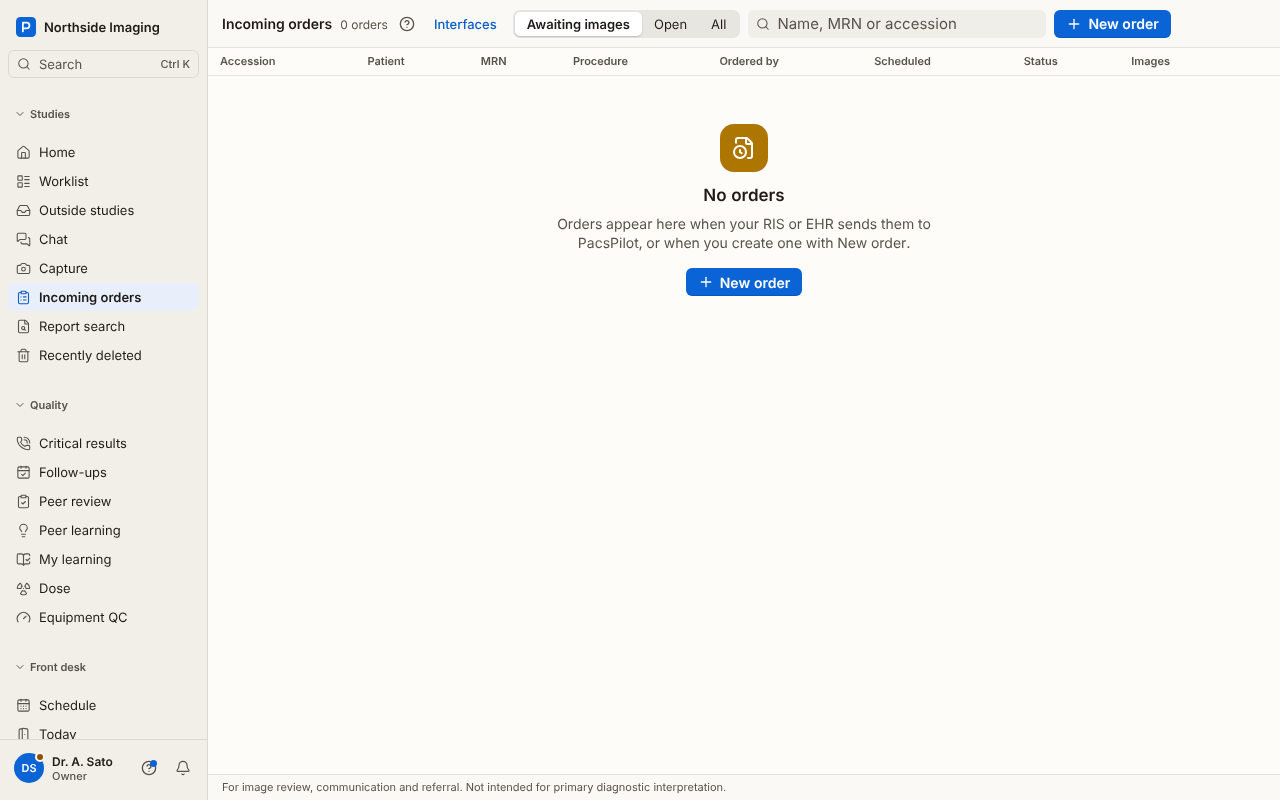
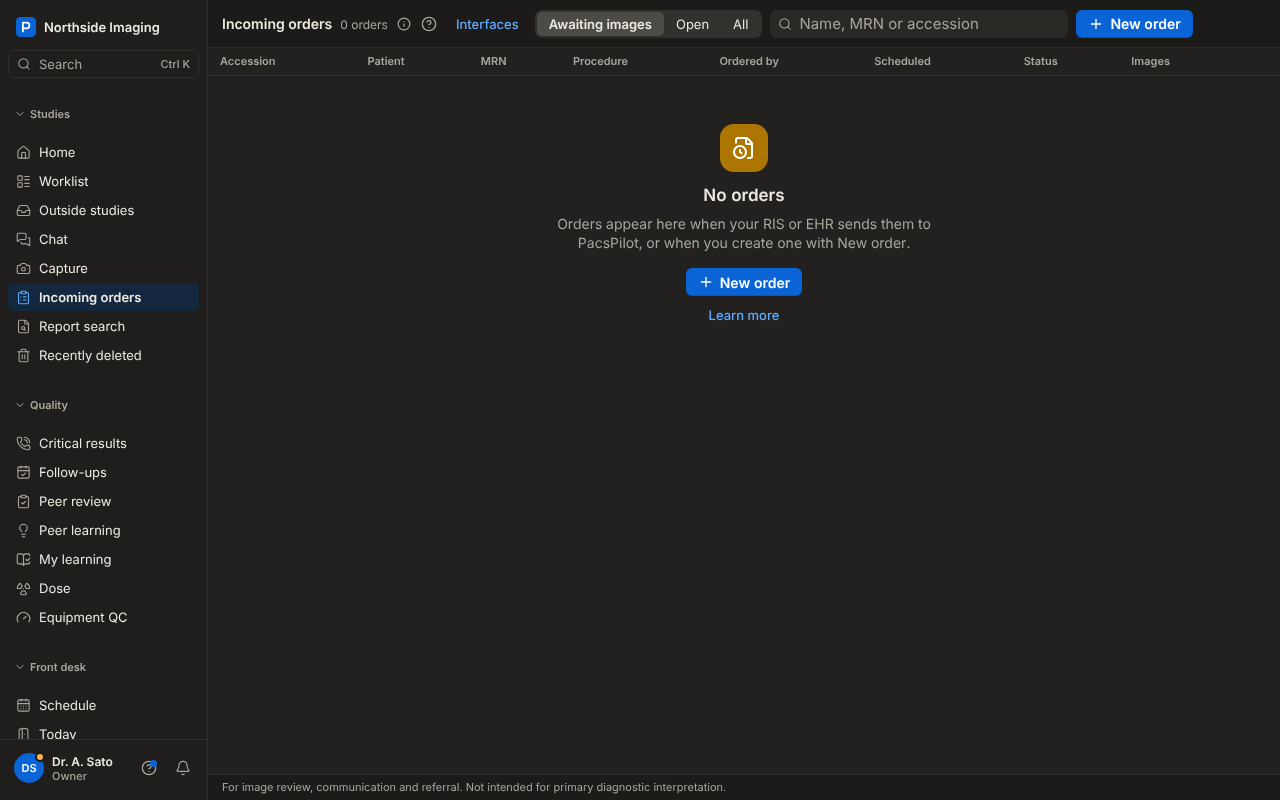
Incoming orders lists the orders PacsPilot has received, newest first: orders your RIS or EHR sends over HL7 or FHIR, and orders a member made by hand with New order. Each row shows whether images for the order have arrived. A study links to its order when its Study Instance UID or accession number matches.
Who can use it
Incoming orders is in the sidebar for members with the
order.write permission (owners, admins and technologists) or the
admin.users permission (owners and admins).
-
With
order.writeyou can also create and edit manual orders and cancel any order. -
With
admin.usersyou also get the Interfaces button, which opens Interfaces.
A member in a visibility group sees no orders here. They see orders only through their studies on the worklist.
How to find an order
- Choose what to show: Awaiting images (the default), Open or All.
- Type a name, MRN or accession number in Search orders.
- Press Load more at the bottom to see older orders.
How to create a manual order
- Press New order.
- Under Patient, fill in Family name, Given name, MRN (required), Birth date and Sex.
- Under Procedure, fill in Description, Code (optional), Modality, Scheduled and Ordering physician (optional).
- Press Create order.
The accession number and Study Instance UID are assigned when you save. The dialog shows the new accession number so you can read it out to the modality or write it on the request. Press Done to close it.
How to edit or cancel an order
- To edit a manual order, press Edit on its row, change the fields and press Save. Only manual orders that are not completed or cancelled can be edited.
- To cancel an order, press Cancel on its row and confirm with Cancel order. A cancelled manual order stays in the list as cancelled, and images that arrive for it still link to it. An order from an interface can be reopened by a later message from the sender.
Fields and columns
| Name | What it means |
|---|---|
| Awaiting images, Open, All | Which orders to show. Awaiting images shows orders, other than cancelled ones, that no study has linked to yet. Open shows scheduled and in-progress orders. |
| Search orders | Finds orders by name, MRN or accession. |
| Count | Under the title: how many orders are loaded so far ("+" means there are more). |
| Interfaces | Opens the learned HL7 field mappings per sender. Owners and admins. |
| New order | Opens the form for a manual order. Needs order.write. |
| Accession | The order's accession number. |
| Patient | The patient's name. |
| MRN | The patient ID. Old MRN means the order arrived with an MRN the practice no longer uses; check the patient and correct it. |
| Procedure | The modality and the procedure description or code. |
| Ordered by | The ordering physician. |
| Scheduled | When the exam is scheduled, or – if not set. |
| Status | Scheduled, In progress, Completed or Cancelled. A Result badge shows a result status the sender reported. Report document opens a report the sender attached. |
| Images | Waiting, or a link to each study that has linked to the order. Click it to open the study in the worklist. |
| Worklist | The modality devices the order is listed on, marked Listed or Started. Accession too long means it cannot be listed. Shown once your practice publishes a modality worklist. |
| Edit | Changes a manual order. |
| Cancel | Cancels the order. |
If something goes wrong
- Could not load orders: press Retry on the message.
- No orders: nothing has arrived yet. Orders appear when your RIS or EHR sends them to PacsPilot, or when you create one with New order.
- No matching orders: try another search, or choose All.
- An order stays on Waiting: no study with the same Study Instance UID or accession number has arrived. Check the accession number on the modality.
- An HL7 sender's messages never become orders: the sender may be waiting for its mapping to be confirmed. See Confirm an HL7 mapping.
- The order could not be saved or The order could not be cancelled: try again. If someone changed the order at the same time, reload the page first.
- No report document or Could not load the document: the attached report could not be shown.
Related
- Worklist
- Interfaces
- Modality worklist
- Gateways and tokens
- Confirm an HL7 mapping
- Create gateway and API tokens
Updated October 19, 2026. Signed in? The same article is in the app's help panel: press
?.