POCUS devices
Mark which site devices are point-of-care ultrasound scanners, with their model, serial number and departments.
What this page is for
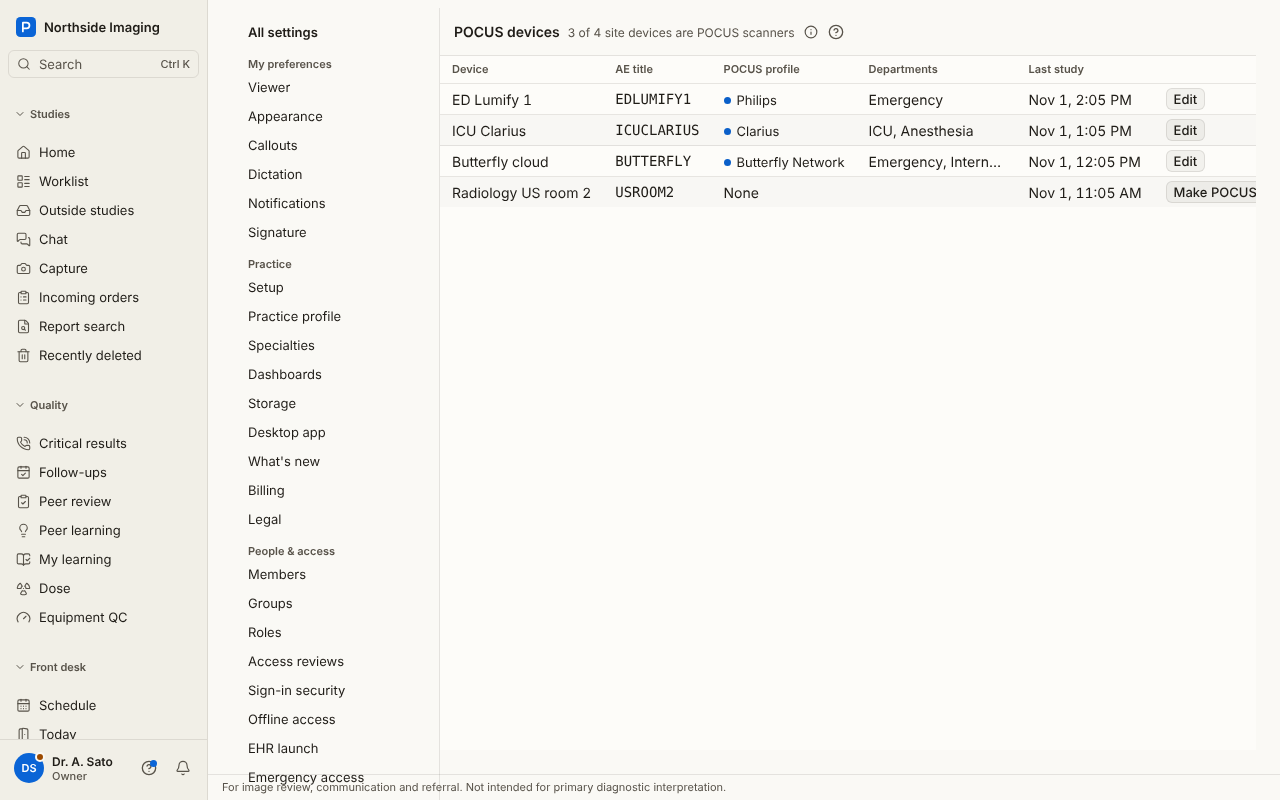
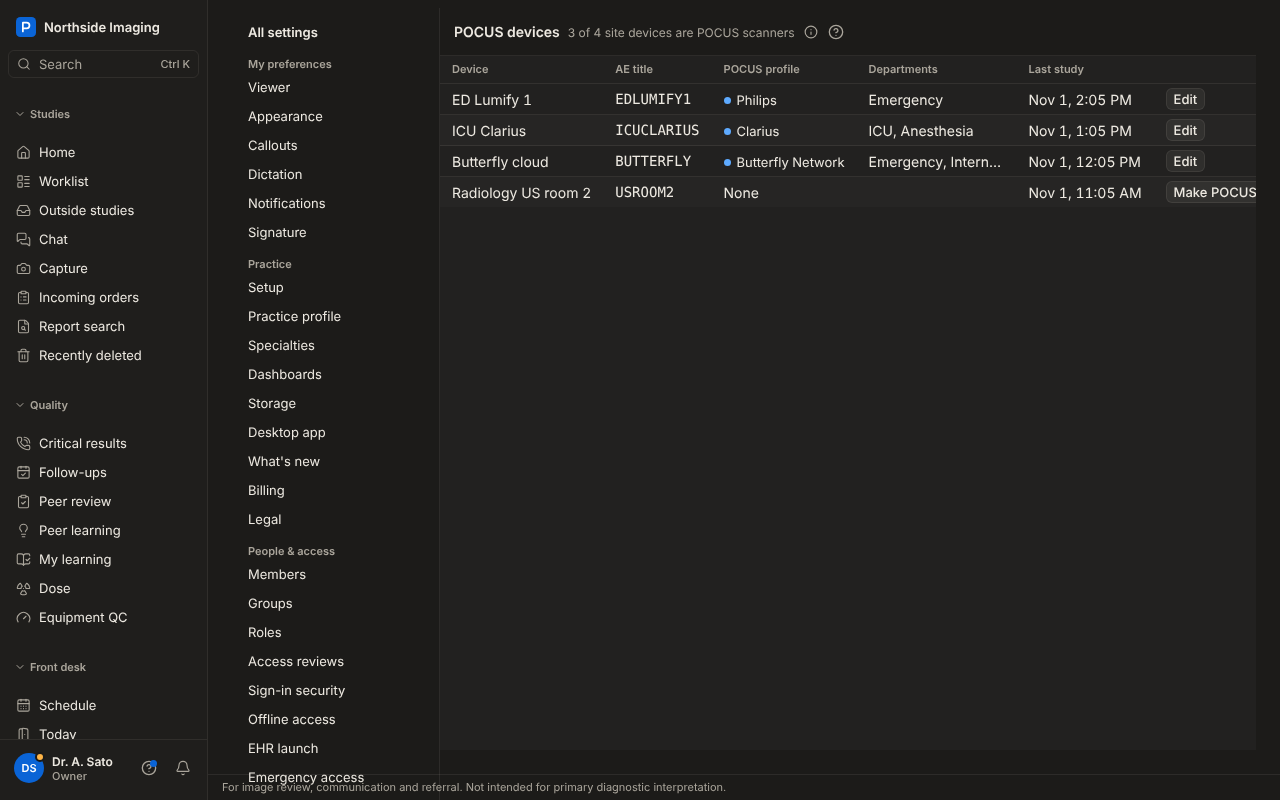
Settings › POCUS devices lists your practice's site devices and which of them are point-of-care ultrasound scanners. A study that arrives from a scanner with a POCUS profile becomes a POCUS exam on its own, so clinicians find it under POCUS exams without claiming it.
The page appears while the Point-of-care ultrasound pack is on under Settings › Specialties.
Who can use it
Owners and admins. Saving and removing a profile are in the audit log.
How to mark a scanner as a POCUS device
- Add the scanner as a site device first, under Settings › Site devices.
- Open Settings › POCUS devices and press Make POCUS on its row.
- Pick the Model. It tells PacsPilot what the scanner supports, such as the worklist and its clip format. Pick Other scanner when the model is not listed.
- Enter the Serial number so you can tell scanners of the same model apart.
- Enter the Departments that use the scanner, separated by commas.
- Press Save.
To stop treating a device as a POCUS scanner, press Edit on its row, then Remove profile. Exams already recorded from it stay.
How to add the POCUS clinician role
Bedside clinicians who scan but do not read radiology get the POCUS clinician role. Press Add POCUS clinician role at the top of the page, then give the role to members under Settings › Members. It lets them see studies and scan, and nothing else. Change it under Settings › Roles if your program needs more.
How to manage operator names
Press Operator names to see the names your scanners sent, each with the clinician who claimed an exam under it. Later exams under a name go to that clinician. Press Remove to forget a name, for example when a scanner login changes hands; that name's next exams wait under To claim on the POCUS exams page.
How the scanner's worklist works
A POCUS scanner has no orders, so PacsPilot gives it a worklist made from open patient visits. Each visit that arrives through your ADT feed shows on every POCUS scanner whose departments include the visit's department. A scanner with no departments shows emergency department visits. The worklist item carries the patient, the visit number, the department, the room and bed, and the attending physician, and is listed as Point-of-care ultrasound.
When a scan made from the item arrives, its exam is linked to the visit and takes the visit's department when it has none. The item then leaves the scanner, and a new one for the same visit takes its place, so a second scan of that patient is its own study. Items leave the scanner when the visit closes or the scanner loses its POCUS profile.
The worklist needs Publish the worklist on in Modality worklist, and the scanner allowed to use the worklist on its site.
Fields and columns
| Column | What it shows |
|---|---|
| Device | The site device's name. |
| AE title | The DICOM name the scanner sends with. |
| POCUS profile | The scanner maker, or None for a device that is not a POCUS scanner. |
| Departments | The departments that use the scanner. |
| Last study | When the scanner last sent a study. |
If something goes wrong
- The scanner is not listed. Only site devices appear here. Add it under Settings › Site devices first.
- Exams have no department. A scanner shared by several departments leaves the department open; the clinician or the visit sets it. Give a scanner one department when only one department uses it.
- A patient is missing from the scanner's worklist. Check that the visit is open, that its department is one of the scanner's departments, and that Publish the worklist is on.
- Scans do not show as exams. Check that the scanner sends with the AE title shown here, and that the study reached PacsPilot.
Related
Updated November 7, 2026. Signed in? The same article is in the app's help panel: press
?.