Peer learning conferences
Plan a peer learning conference from submitted cases, present de-identified slides with a reveal, and take attendance in the room or online.
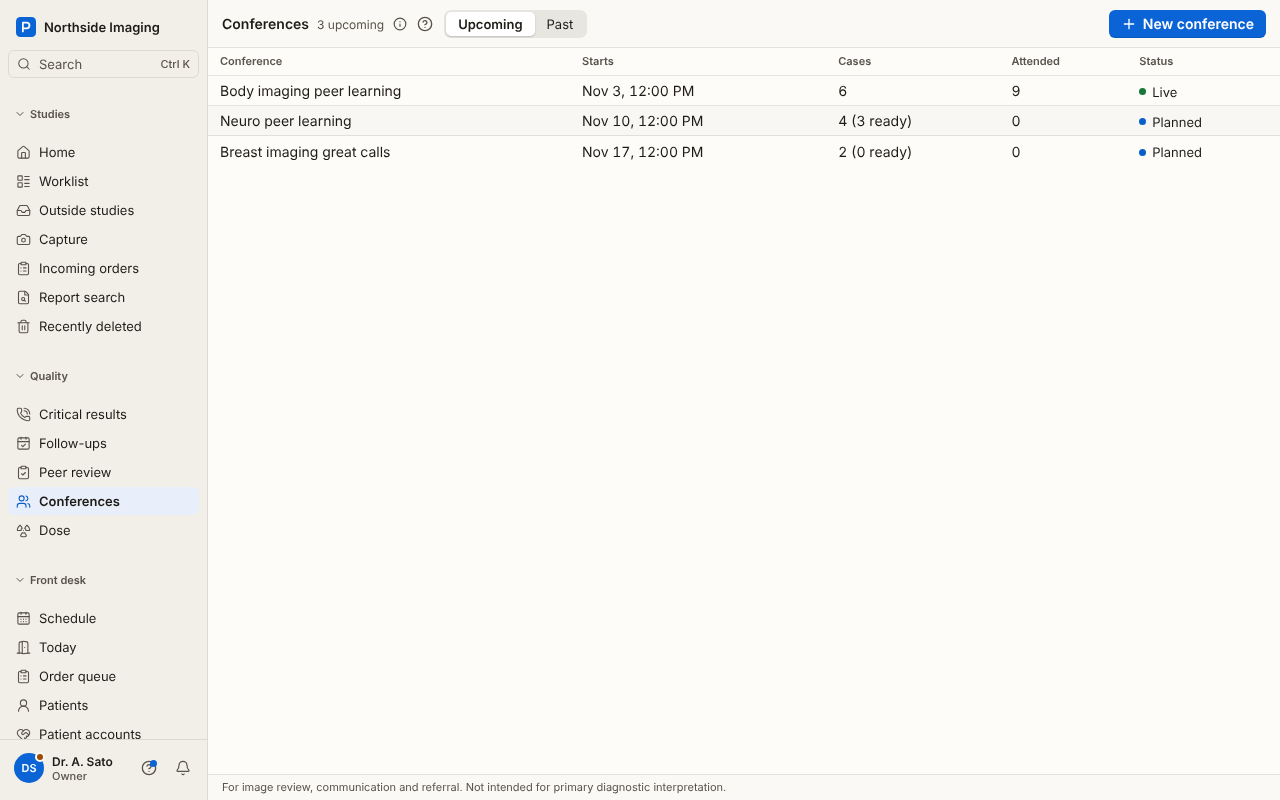
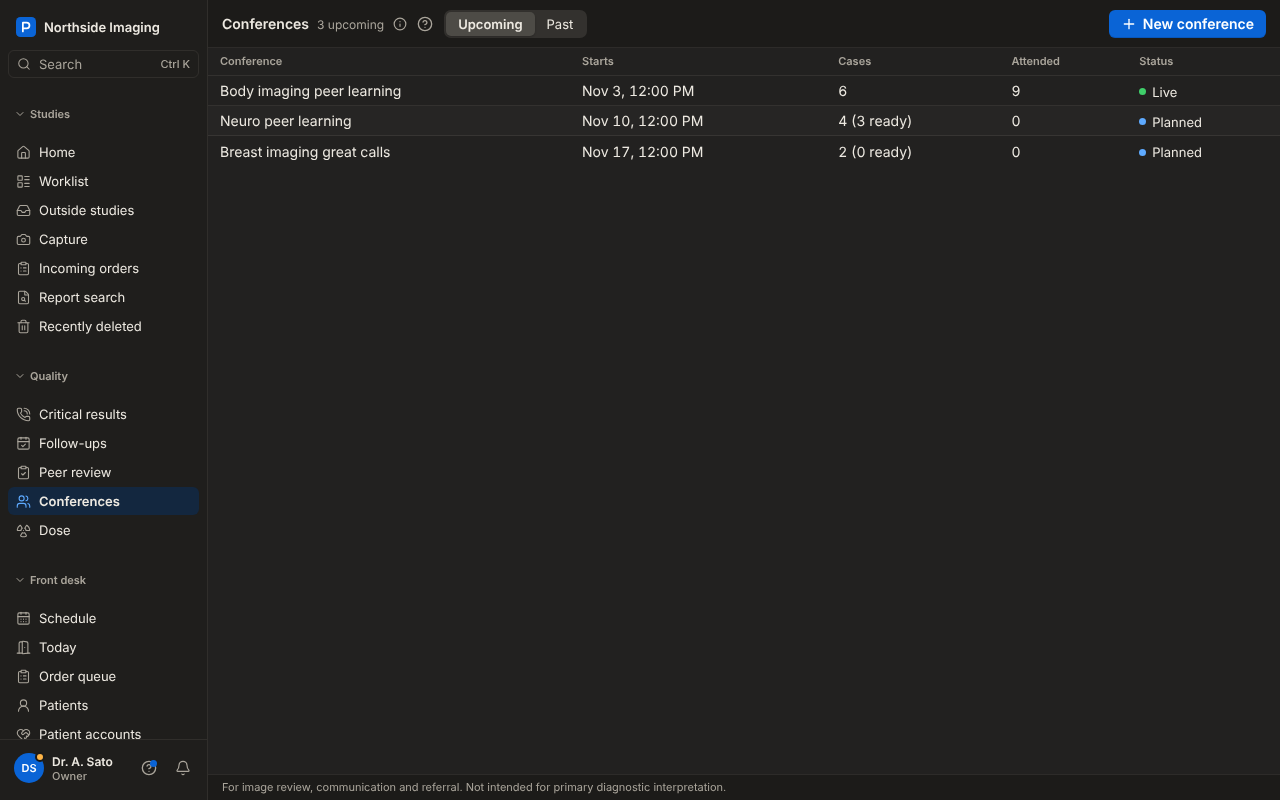
A peer learning conference is where your group looks at learning opportunities and great calls together, without names and without scores. PacsPilot builds the slides from submitted cases, takes them through de-identification, keeps everyone's screen on the same case and counts who attended.
What this page is for
Conferences lists the sessions your practice has planned (Upcoming) and those already held (Past), with the number of cases and how many people attended. Peer learning leaders open a conference to build it. Everyone else opens a live conference to follow it or check in.
Conferences are part of Peer learning. An owner turns it on under Settings › Peer learning, where Conferences and Online attendance can each be turned off. While they are off, these pages and their API answer as if they did not exist.
Who can use it
- Peer learning leaders (the peer learning manage permission, given to owners and to members an owner picks; not part of the Admin role) plan conferences, add and edit cases, present and confirm attendance.
- Presenters a leader names can present and take the roster, but cannot see the source studies.
- Radiologists and trainees (the peer learning attend permission) follow live conferences, check in and record attendance afterwards.
How to plan a conference
- Choose New conference, give it a title without patient or reader names, the start time, the length in minutes, the room and, if people join from elsewhere, your practice's own video call link.
- In the peer learning inbox, choose Add to conference on a submission. Pick the conference, or Next for the next one planned.
- Each case's study (and the related follow-up or pathology study, if the submission names one) is de-identified with the teaching profile in a project called Peer learning under Research. The case shows Ready once the de-identified copy exists. Needs pixel review means an image may have burned-in text. Choose Review pixels: for each image, draw a box over any text (on an iPad or a computer), then Approve or Exclude it. When every image has a decision, choose Release case; the images appear on the slide a moment later. Images whose header still names the patient can only be excluded. Research does not need to be on.
- Fill in each slide: History shows before the reveal; Reveal and Teaching points show after it; Speaker notes only the presenter sees. Use intervals such as "6 months later" instead of dates. PacsPilot refuses slide text that holds the patient's name, ID or accession number, the reader's or submitter's name, or a calendar date.
- Use the arrows to change the order, and pick presenters on the right.
How to present
- Choose Present, then Go live. Choose Open images to open the de-identified study in the viewer in a second window or on the projector. That window follows the case as you move.
- Use Next and Previous (or the ← and → keys) to move between cases. Each case starts with the outcome hidden. Choose Reveal (or press R) when the group has had its say.
- On a phone, the same page is a remote control with large Previous, Reveal and Next buttons and your notes.
- Choose End conference when you are done. The conference is marked held and its slides can no longer be changed.
How attendance works
- In the room: choose Check-in code on the presenter screen. Members scan the QR code with their phone while signed in and are counted at once. New code makes an old photo of the code stop working.
- Online: members who open the live conference follow the presenter's case and reveal within a couple of seconds and are counted once they have followed half the scheduled length with the page open.
- Roster: the presenter or a leader can tick members present on the conference page.
- Afterwards: a member who was there but did not check in chooses I attended; it counts once a leader chooses Confirm.
Attendance counts toward each radiologist's yearly conference target.
Fields and columns
- Cases: how many cases the conference holds. Leaders also see how many are ready to show.
- Attended: members whose attendance is counted.
- Status: Planned, Live while presenting, Held once ended, or Cancelled.
- De-identification: Waiting to de-identify, De-identifying, Needs pixel review, Ready, Excluded in review or De-identification failed.
- Attendance mode: In the room (QR code or roster), Online (minutes followed) or Attested (waiting for a leader to confirm).
If something goes wrong
- A case stays on Needs pixel review: open Review pixels, approve or exclude each flagged image, then choose Release case. Slides show Images not ready until the case is released.
- Excluded in review or De-identification failed: remove the case and add the submission again, or pick another case.
- "This check-in code is not current": the presenter chose New code. Scan the code on the screen again.
- "Check-in is not open": room check-in opens an hour before the start and closes an hour after the end. Use I attended afterwards.
- Attendees do not follow: they need the page open and signed in. If the live connection drops, the page checks again every 2 seconds.
- Slide text is refused: remove the name, ID or date the message names; write intervals such as "6 months later".
Privacy
Slides show only the de-identified copy, never the original study, names, IDs or dates. The peer learning record is kept apart from performance evaluation: nothing here feeds analytics, reader dashboards or peer review scores. Audit entries record who did what, never the slide text.
Related
Updated November 1, 2026. Signed in? The same article is in the app's help panel: press
?.