Access reviews
Confirm each quarter who still needs access to your practice, decide each member, and complete the review with a passkey.
What this page is for
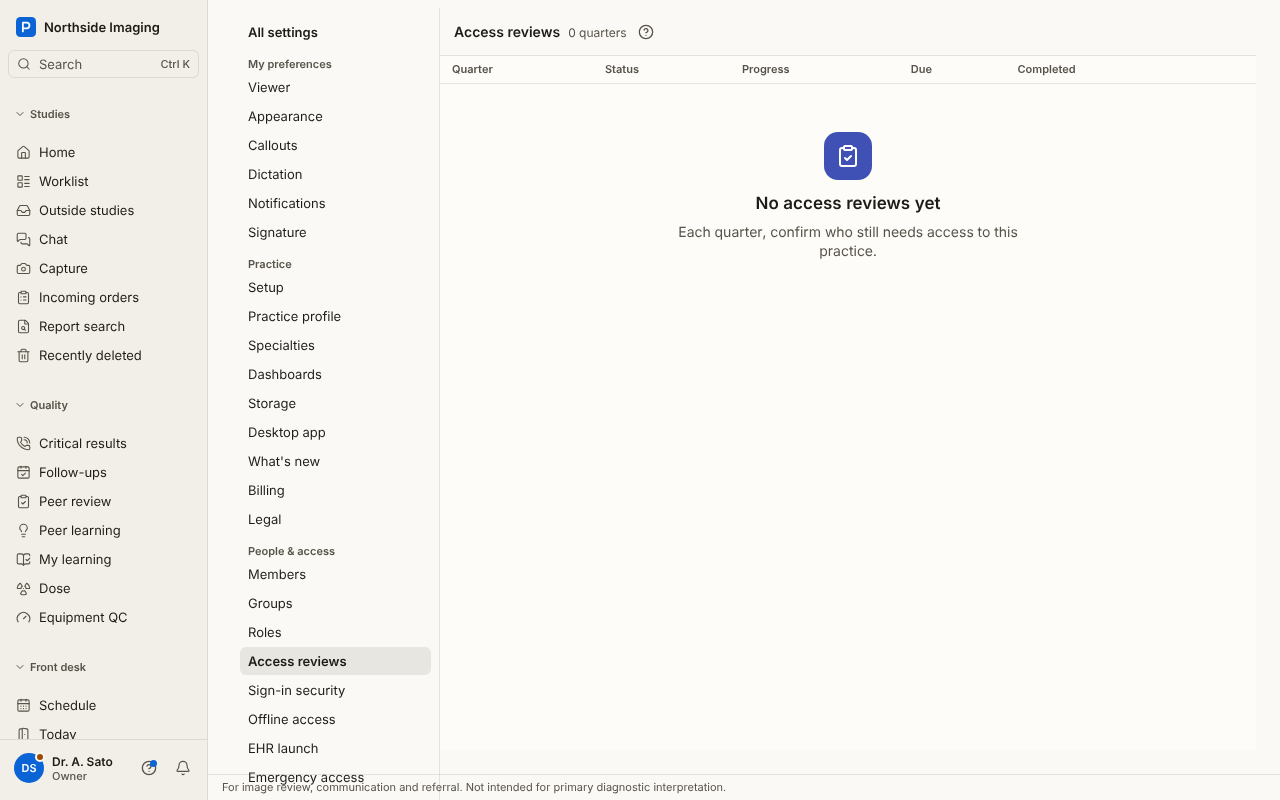
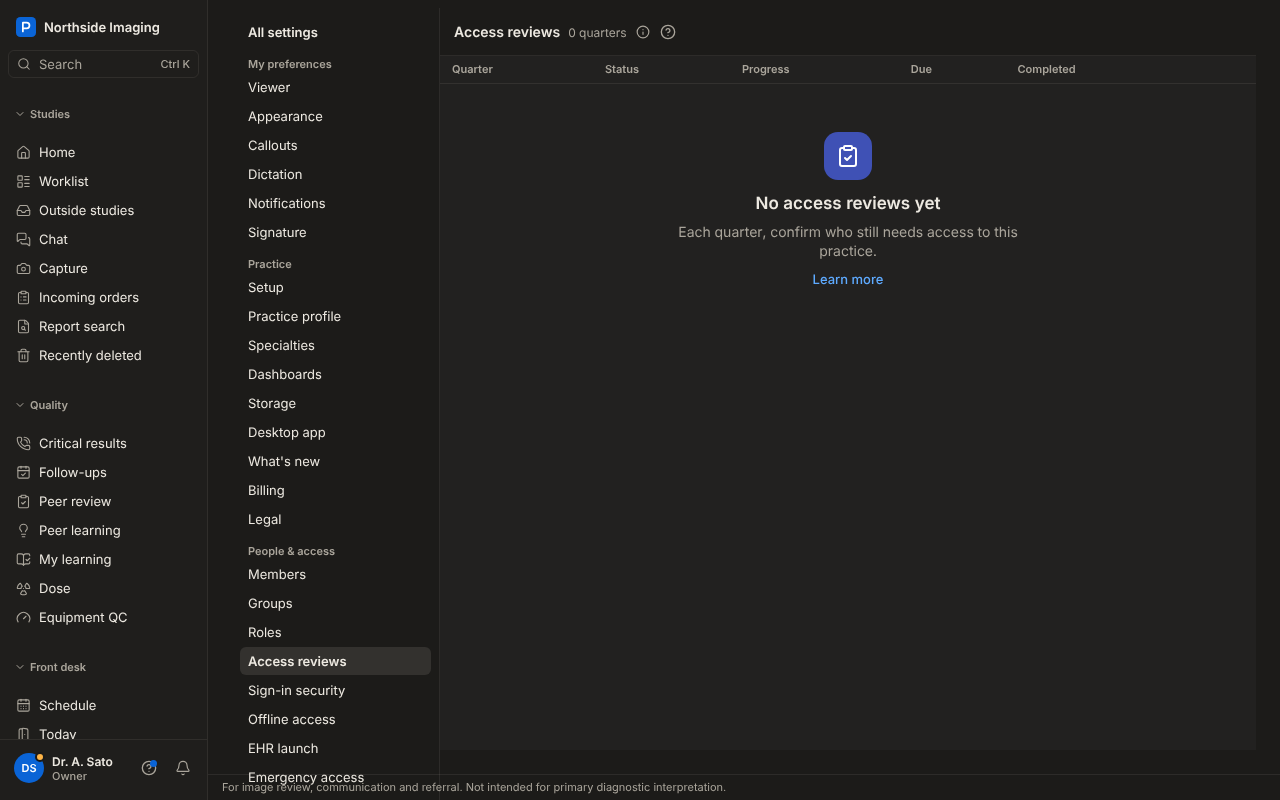
Settings › Access reviews lists your practice's quarterly access reviews, newest quarter first. Each review lists every active member. Owners and admins keep, change or remove each one, then complete the review with a passkey. The completed review exports as CSV for your records.
A review opens on the first day of each quarter and is due 30 days later.
Who can use it
Owners and admins can open this page and each review. It needs the
admin.users permission.
Reviews only open while Quarterly access reviews is on. An owner turns it on under Access reviews on Sign-in security. While it is off, the page says so, and the first review opens overnight after it is turned on.
Nobody reviews their own access, and only an owner can decide an owner's row. The exception is a practice with only one owner: that owner decides their own row too, and the audit log records it as a self-review.
How to review a quarter
1. Press Review on an open quarter. Completed quarters show View instead. 2. Use All, Undecided or Flagged in the toolbar to narrow the list. 3. For each member, press Keep, Change or Remove: - Keep confirms the access is still needed. - Change records that the access needs to change. Adjust the role or group on Members afterwards. - Remove disables the member now. Their sessions end and their upload agents stop. The membership and its history are kept, and an admin can enable it again on Members. 4. Add a Note if you want (up to 500 characters). It is shown in the review and its CSV export. Do not include patient information. 5. Press the button in the dialog to save the decision.
You can change a decision while the review is open by pressing another button on the row.
How to complete a review
- Make sure every member has a decision. The banner says how many still need one.
- Press Complete with passkey and confirm with your passkey.
If the remaining rows are your own or an owner's, the banner says another owner or admin has to decide them before the review can be completed.
How to export a review
- Open the review.
- Press Export CSV.
Fields and columns
| Name | What it means |
|---|---|
| Quarter | The quarter the review covers. |
| Status | Open, Overdue (past its due date) or Completed. |
| Progress | How many members have a decision, out of all members in the review. |
| Due | The date the review is due. |
| Completed | When it was completed and by whom. |
| Review, View | Open the review. |
| All reviews | Back to the list of reviews. |
| All, Undecided, Flagged | Show every member, only those without a decision, or only those with a flag. |
| Member | The member's name and email. (you) marks your own row. |
| Role | The member's role, or their custom role. |
| Sees | Their visibility group, or All studies. |
| Last active | The date they were last active, or Never. |
| Flags | Inactive N d (no activity for the number of days set on Sign-in security), No passkey, Emergency access not reviewed, and Disabled when the membership is off. |
| Decision | Keep, Change or Remove, who decided, and the note. Another reviewer decides on rows you may not decide. |
| Note | Your comment on the decision. |
| Export CSV | Downloads the review as a CSV file. |
| Complete with passkey | Completes the review once every member has a decision. |
If something goes wrong
- Access reviews are off: an owner turns on Quarterly access reviews on Sign-in security.
- No access reviews yet: the first review opens on the first day of a quarter once reviews are on.
- Could not load access reviews: press Retry. Could not load the review: reload the page.
- Someone else must review your own access: another owner or admin decides your row. Only a practice's sole owner may decide their own.
- Only an owner can manage owners: ask an owner to decide owner rows.
- N members still need a decision: decide the remaining rows, then complete the review.
- This review is already completed: decisions can no longer change.
- The review changed; reload and retry: someone else changed it at the same time. Reload the page.
- The review could not be completed: try again. If you cancel the passkey prompt, nothing changes.
Related
Updated October 19, 2026. Signed in? The same article is in the app's help panel: press
?.